Design
Build a Full Icon Set for an App: Workflow, Rules, Sizes, Exports
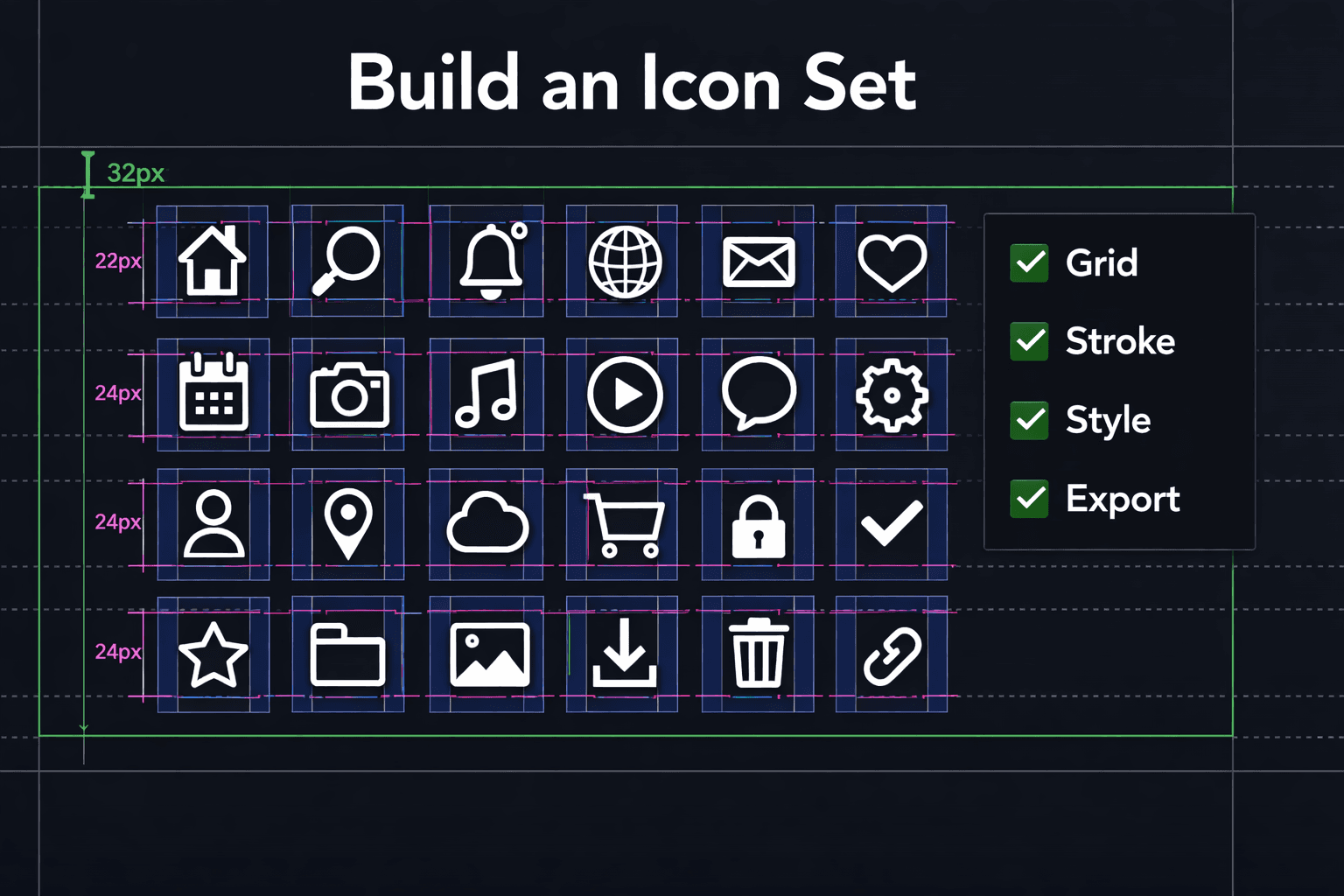
A good icon set is invisible. It “just feels right” across your app.
A bad icon set is impossible to ignore:
some icons look heavier than others
stroke widths change randomly
padding is inconsistent
curves don’t match
filled icons mix with outline icons
exports break in dev
This guide gives you a production workflow to build a full app icon set that is consistent, scalable, and dev-friendly—whether you design manually, generate with AI, or do a hybrid.
Your main reference for generating clean, scalable assets:
AI SVG Generator (Pillar): https://svgverseai.com/solutions/ai-svg-generator
Step 1: Lock the icon style (before you draw anything)
If you skip this, you’ll end up redoing everything later.
Decide:
Outline or filled (don’t mix unless you create two separate sets)
Stroke width (example: 1.5px or 2px at 24px)
Corner radius language (sharp vs rounded)
End caps & joins (round caps often feel modern and friendly)
Detail level (minimal vs detailed)
If you want a clean, modern look, this post helps define the visual rules:
Step 2: Choose your grid + sizes (the “system” part)
Most apps need a few core icon sizes. Common standards:
16px (dense UI)
20px (toolbars)
24px (default)
32px (large buttons)
Best practice:
design on 24×24 as your master
scale to 16/20/32 only after style is consistent
keep a consistent safe area (padding)
Safe area rule (simple)
At 24×24:
keep your icon inside ~20×20 area
leave consistent margin so icons don’t “touch the box”
This is the #1 reason a set looks professional.
Step 3: Build a category map (so you don’t miss icons)
Create your icon list before execution.
Common app categories:
Navigation: Home, Search, Explore, Back, Menu
Actions: Add, Edit, Delete, Share, Download
Communication: Mail, Chat, Notification, Bell
Media: Play, Pause, Volume, Camera
Commerce: Cart, Tag, Wallet, Receipt
Settings: Gear, Lock, User, Help
Now label each as:
Core icons (must be perfect)
Secondary icons (can be simpler)
Step 4: Generate or design the base icons (but keep rules strict)
If you’re generating icons with AI:
Use a consistent style phrase (same in every prompt)
Keep subjects simple (icons are symbols, not illustrations)
Repeat the same structure: “outline icon, consistent stroke, minimal, centered, 24px grid”
If you want a quick AI workflow:
/blog/ai-generate-icon-set-for-ui-ux
And keep all assets tied back to the main generation hub:
Prompt template (copy/paste)
“Minimal outline SVG icon of {object}, consistent 2px stroke, rounded caps, no fill, centered on a 24×24 grid, clean geometry, no shading, no texture, crisp vector style.”
Step 5: Normalize visual weight (the secret weapon)
Two icons can have the same stroke width and still “feel” different.
Fix by checking:
area balance (does one icon feel too bold?)
optical alignment (center visually, not mathematically)
curve consistency (same radius language across set)
stroke length (avoid random short strokes in one icon)
Quick test
Put all icons in a grid and zoom out until they’re tiny.
If one icon jumps out, it’s heavier or misaligned.
Step 6: Standardize naming + file structure (future-proof)
Use consistent names:
icon-home.svgicon-search.svgicon-notification.svg
Don’t use:
Vector 18.svgGroup 2.svg
Create folders:
/icons/outline/24//icons/outline/16//icons/filled/24/(only if you have a filled set)
This makes developer handoff painless.
Step 7: Export SVG correctly (so it doesn’t break)
Most “SVG problems” are export problems.
Use this export guide:
Day 6: Export SVG from Figma Correctly (your Week 1 blog)
And if something breaks, this debugging checklist saves time:Day 7: SVG Troubleshooting
Also helpful:
Step 8: QA checklist (copy/paste)
Before shipping:
All icons share the same grid & padding
Same stroke width, caps, joins
No stray points outside bounds
ViewBox correct
No random fills if set is outline
Looks consistent at 16/20/24/32 sizes
Works in browser and dev preview
CTA
Build your icon set fast:
Start Free Today: https://app.svgverseai.com/
See plans & credits: https://svgverseai.com/pricing
AI SVG Generator: https://svgverseai.com/solutions/ai-svg-generator