Design
Cricut SVG Checklist: Make Cut-Ready SVGs That Import Cleanly
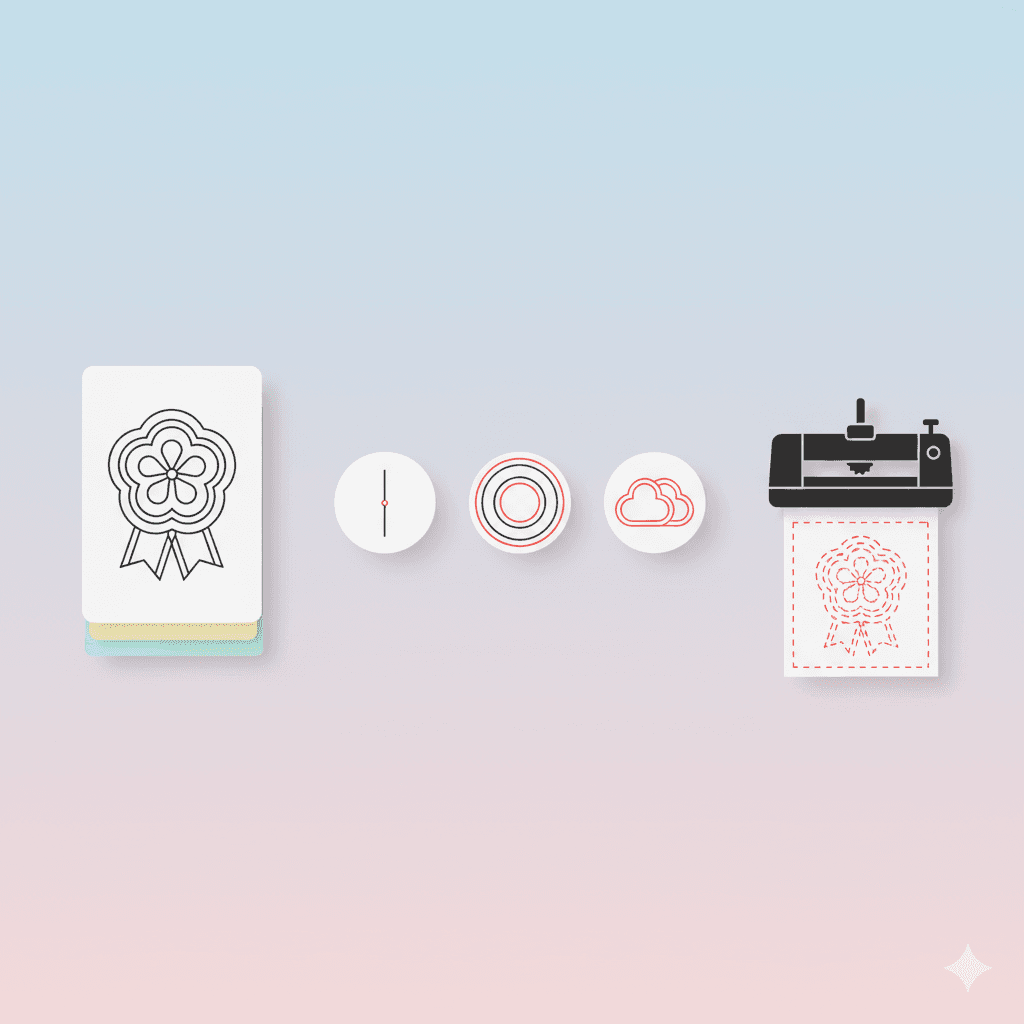
Cut-Ready SVG for Cricut/Silhouette: The Non-Negotiable Checklist
If you’ve ever imported an SVG into Cricut Design Space or Silhouette Studio and thought:
“Why are there a million extra layers?”
“Why did it cut the inside of everything?”
“Why did my strokes disappear?”
“Why is it cutting shapes I can’t even see?”
…you’re not alone.
Cutting workflows are stricter than web SVG. The machine doesn’t care how it looks on screen—it cares whether the geometry is clean, closed, and separable.
This checklist is the difference between “looks nice” and actually cut-ready.
What Cricut hates (and why imports get messy)
Cutting software commonly hates:
1) Strokes (lines) instead of shapes
A stroke is not a cut shape—machines need a closed path.
Fix: convert stroke → path (outline stroke).
2) Tiny details and extreme node counts
Too many points = slow imports and ugly cuts.
Fix: simplify paths and avoid microscopic cutouts.
3) Overlapping shapes that “look fine”
Overlaps create double cuts, unexpected holes, and messy welds.
Fix: union/weld shapes where needed.
4) Clipping masks, complex effects, gradients
They might display, but cutters can interpret them as separate shapes or ignore them.
Fix: flatten/expand, avoid effects.
Stroke → path (the most important step)
If your design uses strokes (common for icons or line art), do this:
Goal
Turn a line into an actual filled shape (a cuttable outline).
What to do
In Figma/Illustrator/Inkscape: Outline Stroke / Stroke to Path
Confirm the result is a filled shape (not just a line)
If you’re making SVGs for cutting often, you’ll do this constantly.
Internal reading: /blog/outline-svg-crisp-minimal-icons-for-modern-design
Expand / outline everything that can “change meaning”
Convert to outlines
Text → outlines (to avoid font issues)
Strokes → outlines
Appearance effects → flattened shapes
Why
Cricut/Silhouette need predictable geometry. Anything “dynamic” becomes unpredictable on import.
Unions (welds) vs holes (compound paths)
This is where most people mess up.
If you want one solid cut:
Union/weld overlapping shapes into a single path
If you want holes:
Use compound paths properly (e.g., donut shape)
Ensure the inner path is actually recognized as a cutout
Quick sanity check:
If you select the final shape, it should behave like one object—either solid, or solid with intentional holes.
Layer separation (especially for multi-color projects)
Cutting workflows often require one layer per material/color.
Best practice
Separate by color/material
Name layers clearly (even if you’ll rename later in the cutter software)
Avoid hidden layers and duplicates
Common mistake
A design “looks like” 3 colors, but it’s actually 38 shapes layered on top of each other.
Fix: clean it in your design tool first. Your future self will thank you.
Test import (don’t skip this)
Before you sell or deliver the file, test it:
Cricut Design Space
Import SVG
Check the layer list (should be clean and intentional)
Preview the cut paths
Silhouette Studio
Import SVG
Check for weird extra cut lines
Confirm scaling is correct
What you’re looking for
No surprise layers
No duplicate cuts
Correct holes
Correct size (especially if you used pixels vs mm/inches)
Final checklist (copy/paste)
Use this as your final “ship it” list:
All strokes converted to paths (outline stroke)
All text converted to outlines (or removed)
No clipping masks / filters / gradients used as core shapes
Overlaps welded/unioned where you want one cut
Holes created via compound paths (not accidental overlaps)
Paths simplified (no insane node counts)
Layers separated by material/color
Imported and tested in Cricut/Silhouette without surprises
Final export: clean SVG with sensible layer names
If you want sharp, clean strokes and predictable cutting geometry, keep this companion guide bookmarked:
/blog/outline-svg-crisp-minimal-icons-for-modern-design