Design
Dark Mode SVG Icons: Make Icons Look Perfect in Light and Dark Themes
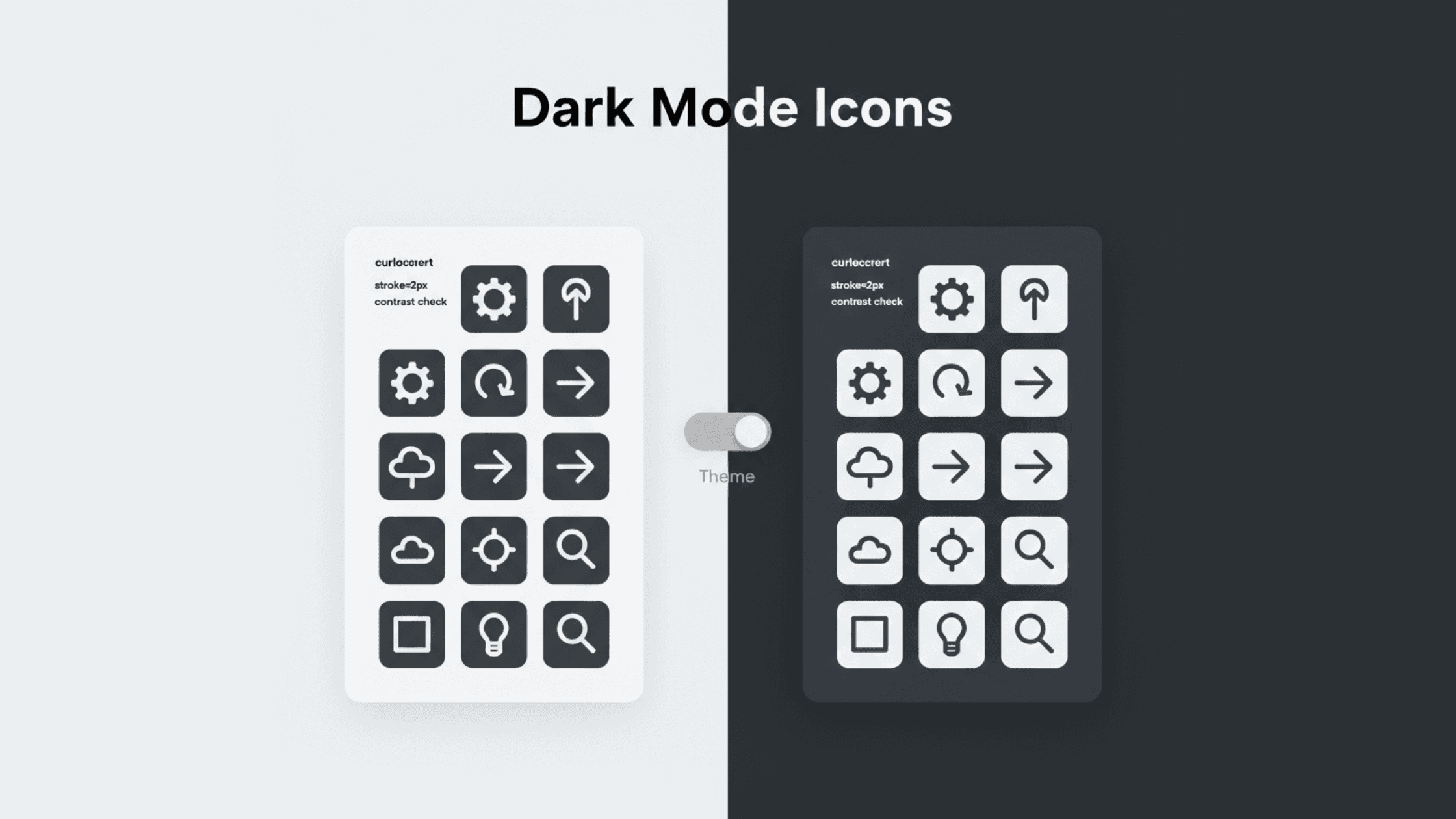
Dark mode isn’t optional anymore. Users expect it. Platforms default to it. And the fastest way to break a polished UI is with icons that disappear, lose contrast, or look “off” the moment dark mode is enabled.
If your SVG icons were designed only for light backgrounds, dark mode exposes every shortcut you took.
This guide shows how to create dark mode–ready SVG icons that adapt cleanly to any theme—light, dark, system, or custom—without maintaining multiple icon sets.
Why SVG Icons Fail in Dark Mode
Most dark-mode issues aren’t bugs. They’re design decisions that didn’t age well.
Common causes:
Hard-coded
fill="#000"orfill="#fff"Icons exported as outlines but styled as fills
Insufficient contrast on mid-tone backgrounds
Stroke widths that vanish on dark surfaces
Inline styles that override theme variables
SVG is flexible—but only if you let it be.
Rule #1: Never Hard-Code Colors in SVG Icons
If your SVG contains this:
You’ve already lost dark mode.
Use currentColor Instead
Why this works:
The icon inherits color from CSS
Light/dark mode switching becomes automatic
No duplicate SVGs needed
Your icon color is now controlled by:
And your theme controls --icon-color.
Stroke vs Fill: Pick One (and Be Consistent)
Dark mode punishes inconsistency.
Best practice:
Icons under 24px: use strokes
Icons over 24px: fills or solid shapes
Never mix stroke + fill unless intentional
Also:
Use even stroke widths (1.5px, 2px)
Set
stroke-linecap="round"for smoother visualsAvoid hairline strokes (<1px)
Thin strokes that look elegant on white often disappear on dark gray.
Contrast Is a Math Problem, Not a Feeling
An icon that “looks fine” isn’t enough.
For accessibility and clarity:
Minimum 3:1 contrast for UI icons
4.5:1 if the icon conveys meaning (error, warning, success)
Test icons against:
Pure black (#000)
Dark gray (#121212)
Tinted dark backgrounds (blue, green, purple)
If it fails on one, users will notice.
Remove Inline Styles (They Break Themes)
SVGs exported from tools often include:
This blocks:
CSS overrides
Hover states
Dark mode toggles
Clean SVGs should:
Use attributes (
fill,stroke)Avoid
<style>tags inside SVGBe presentation-only, not opinionated
A clean SVG is a component, not an image.
Use CSS Variables for Advanced Theming
Want smarter control than currentColor?
Example:
Then define per theme:
Now your icons adapt without touching the SVG again.
Hover, Active, Disabled States (Often Forgotten)
Dark mode highlights lazy states instantly.
Plan for:
Default
Hover
Active
Disabled
Example:
Avoid opacity hacks alone—reduced contrast + opacity can make icons unreadable.
SVG ViewBox and Padding Matter More in Dark Mode
Dark backgrounds exaggerate spacing problems.
Check that:
viewBoxtightly fits the iconNo invisible padding
No clipped strokes
Misaligned icons stand out more on dark UI than light UI.
Test Where Users Actually Use Dark Mode
Before shipping:
macOS dark mode
Windows dark mode
Android system dark
iOS dark mode
Browser forced dark modes
SVGs that survive all five are production-ready.
The Shortcut Most Teams Miss
Manually fixing icons one by one doesn’t scale.
A smarter workflow:
Generate clean SVGs with no hard-coded styles
Normalize stroke, viewBox, and structure
Apply theming via CSS, not SVG edits
This is exactly where modern AI-based SVG generators save time—by outputting theme-ready vectors instead of decorative art.
If you’re creating icons at scale, start with SVGs that are theme-agnostic by design, not patched after the fact.
Final Checklist: Dark-Mode-Perfect SVG Icons
Before shipping, confirm:
Uses
currentColoror CSS variablesNo inline styles or
<style>blocksConsistent stroke or fill strategy
Adequate contrast on dark backgrounds
Clean viewBox with no extra padding
Tested in real dark-mode environments
If all boxes are checked, your icons will look right—no matter the theme.