Design
JPG to SVG: Best Settings for Logos vs Photos
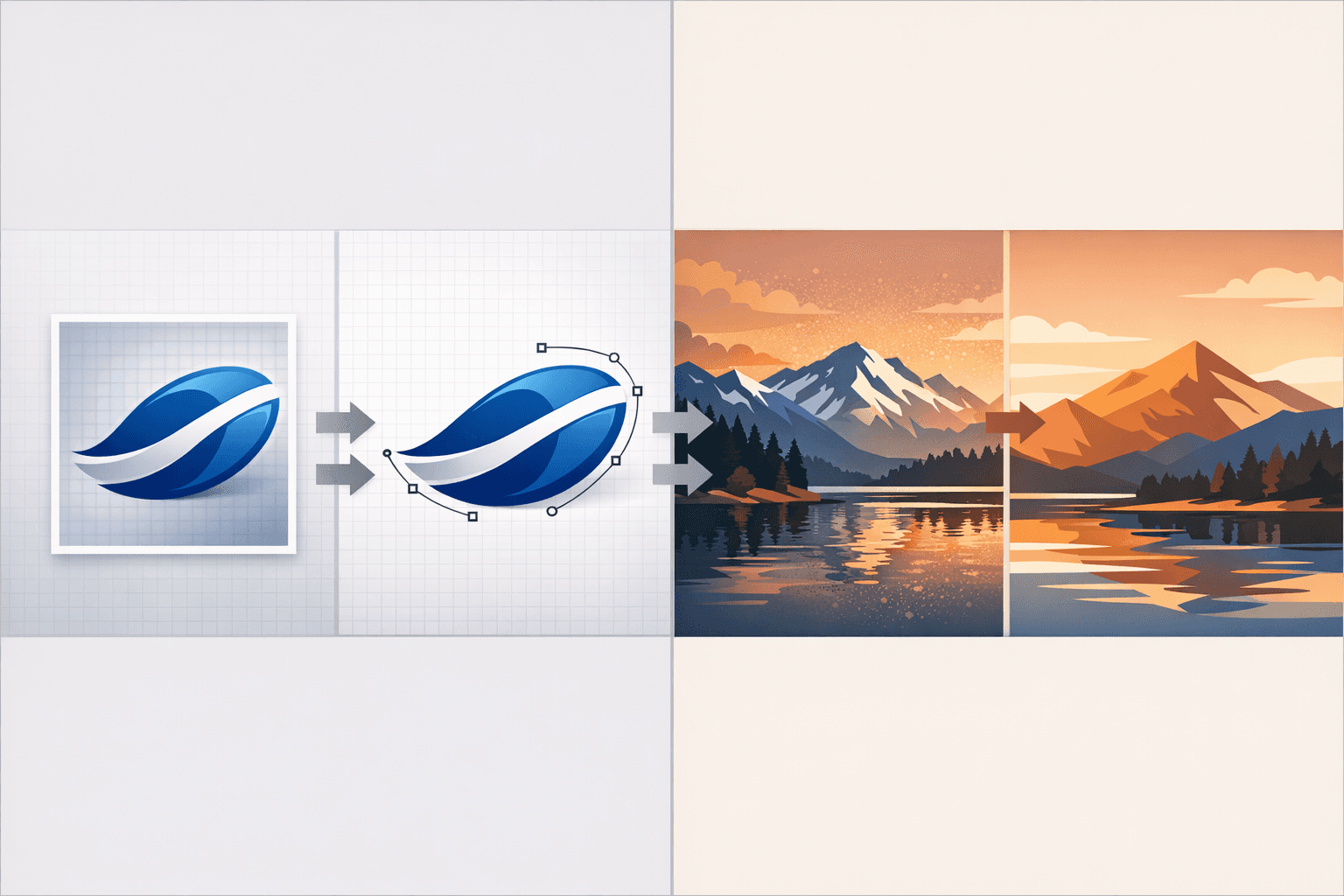
JPG to SVG: Best Settings for Logos vs Photos
JPG is great for photos, terrible for clean vector conversion. If you’ve ever converted a JPG to SVG and got a 600KB “spaghetti path monster,” you’ve seen why.
Here’s the truth: the best JPG→SVG settings depend on what the JPG contains. A flat-color logo needs one workflow. A photo needs a totally different expectation (and often a different output).
This guide breaks it down with practical settings and a clean workflow you can repeat.
JPG problems (why JPG makes SVG harder)
JPG is lossy compression, which creates artifacts that tracing tools interpret as “real edges.”
Common JPG issues that ruin vector results:
Compression blocks (tiny squares) → creates lots of micro-shapes
Color noise and speckling → increases path count
Soft edges / anti-aliasing → produces double outlines
Gradients become banding → tracing generates multiple rings
Low resolution logos (e.g., 200px wide) → jagged curves when traced
If your input is already damaged, any converter (AI or trace) has to “guess.”
When to use AI vs trace
Use this as your decision rule:
Use tracing (Inkscape/Illustrator-style) when…
It’s a logo, icon, badge, flat illustration
Colors are limited (1–10 solid colors)
You want precise, editable paths
You need tiny file size
Use AI when…
The “logo” JPG is low-res, blurred, or noisy
The artwork has shading, complex edges, or mixed styles
You want a cleaner re-interpretation (not a literal trace)
You want SVG you can quickly refine in an editor
If you’re stuck choosing, compare this:
Trace = literal conversion
AI = reconstruction (often cleaner), then you edit
If you want a deeper comparison, read: /blog/ai-svg-vs-online-converters
Handling gradients and noise (before you convert)
If you feed gradients + JPG artifacts into tracing, you’ll get bloated SVGs.
For logos: remove the “photo stuff”
Do these before conversion:
Upscale (2x–4x) if it’s tiny (helps edge detection)
Denoise lightly (reduce speckle)
Increase contrast (clean separation)
Flatten background (solid white/transparent)
Limit colors (posterize to 2–8 colors)
Rule: Fewer colors = fewer paths = smaller SVG.
For photos: decide your goal
A photo can become:
Stylized vector poster (limited colors) ✅ practical
Vector illustration (AI-generated look) ✅ practical
Photorealistic “true vector photo” ❌ usually not practical (huge files)
If your goal is (3), skip the pain: consider keeping the photo as JPG/WEBP and use SVG only for overlays/shapes.
Clean logo workflow (repeatable, safe)
This is the workflow that consistently produces clean, editable SVGs.
Step 1: Prep the JPG (2 minutes)
Start with the largest version you can find
Remove background (even simple “white” matters)
If the logo is small: upscale first, then clean edges
Reduce colors to a small palette (2–8)
Step 2: Convert to SVG (two best routes)
Route A: SVGverseAI (fast + clean base)
Upload JPG → choose image to SVG flow
Use a prompt like:
“Convert this into a clean, flat vector logo. Smooth curves, minimal nodes, solid fills, no texture.”Export SVG
Open in the SVG editor → simplify shapes if needed
If you want the full “generate → refine” workflow, this helps:
/blog/from-prompt-to-perfection-turn-ideas-into-scalable-svgs-with-svgverseai
Route B: Tracing tool settings (for flat logos)
If you’re using a trace tool, these settings usually work best for logos:
Mode: Colors (not grayscale)
Scans: 3–8 (start low; increase only if needed)
Smoothing: Low to Medium
Remove background: ON
Stack scans: ON (if colors are layered correctly)
Speckle suppression: ON (reduces micro-noise)
Corner emphasis: Medium (logos need corners)
Then do one cleanup pass:
Delete stray tiny shapes
Merge same-color shapes
Simplify paths slightly (don’t destroy corners)
Step 3: Clean + simplify (the part most people skip)
Open your SVG and look for:
Tiny dots, dust shapes
Duplicate outlines
Too many nodes on curves
Fixes:
Merge similar shapes
Simplify curves carefully
Convert repeated inline styles into a single class (reduces file size)
Photo → vector realities (what’s actually possible)
A JPG photo contains millions of color transitions. SVG works best with shapes.
So your realistic options are:
Option 1: “Poster vector” (best for marketing)
Reduce to 6–20 colors
Use larger shape regions
Accept stylization
This can look amazing for thumbnails, banners, and social posts—especially when you want a consistent brand style.
Option 2: AI illustration from photo (best for creators)
Turn the photo into an illustration style first (clean edges + shading)
Then export SVG
Touch up in editor
Option 3: “True vector photo” (avoid unless required)
Technically possible
Usually results in:
Huge SVG
Thousands of paths
Slow rendering
If your use-case is web performance, this is the wrong path.
Export checklist (don’t publish before this)
Before you ship the SVG:
Open the SVG in a browser (Chrome/Safari)
Confirm it scales clean at 100px and 2000px
Remove hidden layers and stray shapes
Ensure fills/strokes are intentional (no random strokes)
Confirm viewBox is correct (no weird padding)
Run an SVG optimizer (SVGO) if size matters
Test on a dark + light background (logos break here)
If the SVG is still messy, it’s usually because the JPG input is too damaged. In that case: recreate (AI) instead of trace.