Design
Prompt Consistency: Keep the Same Style Across 20 SVG Assets
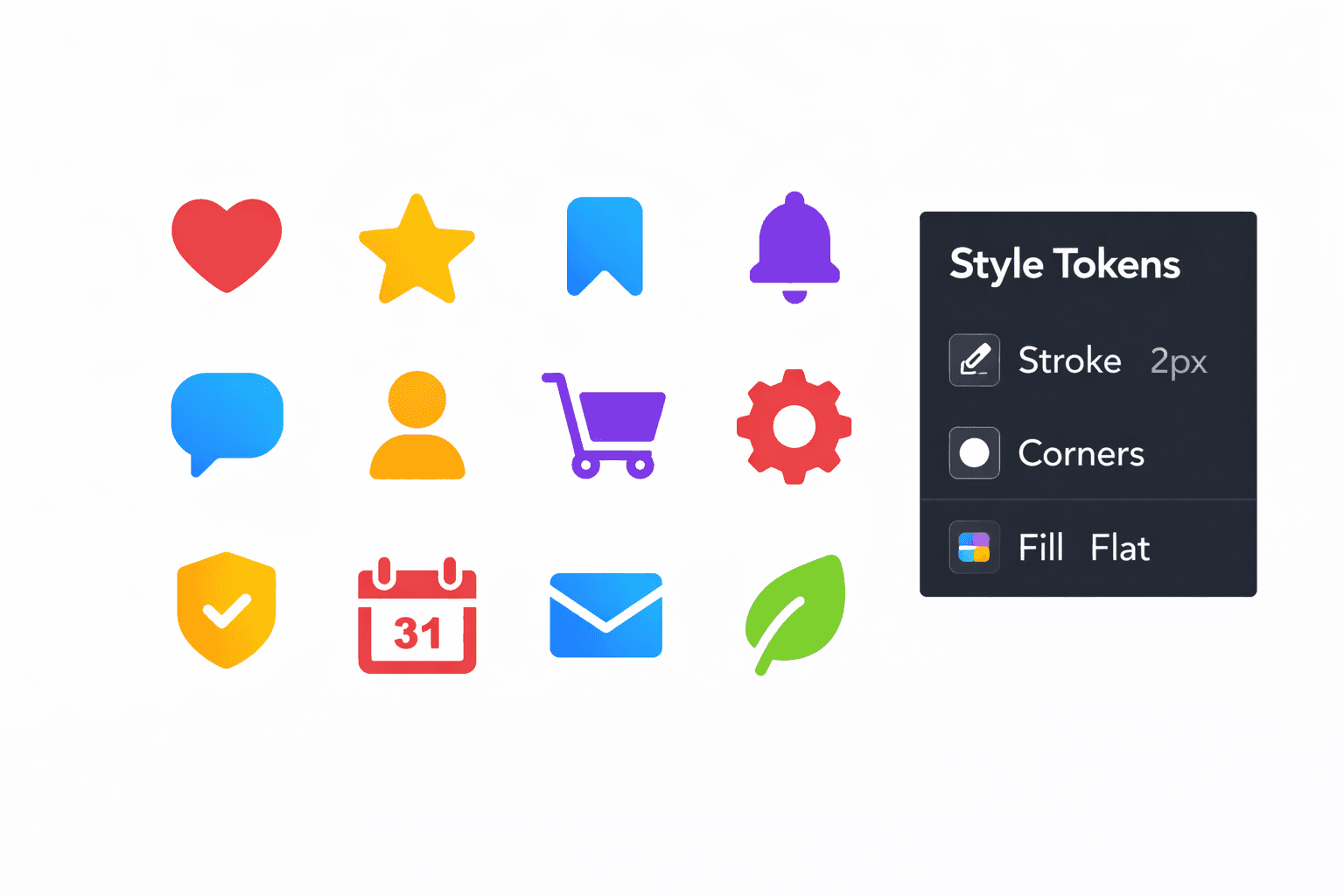
The fastest way to waste time with AI design is inconsistency.
You generate 10 assets and realize:
3 look rounded
2 look sharp
some have thick strokes
some have thin strokes
colors shift
line styles change
details don’t match
Now you’re stuck “fixing style” instead of producing output.
This guide gives you a repeatable prompt system to keep a consistent style across 20+ SVG assets.
Start at the core:
AI SVG Generator: https://svgverseai.com/solutions/ai-svg-generator
Why style drift happens
Style drift usually comes from:
changing prompt wording too much
mixing style descriptors (minimal + detailed + glossy + hand-drawn)
forgetting constraints (stroke, caps, palette)
using different subjects that force different complexity
not having a QA checklist
So the solution is: standardize your prompt structure.
Step 1: Create “style tokens” (your locked design rules)
Style tokens are tiny rules you repeat every time.
Examples:
stroke: 2px
caps: round
corners: rounded
fill: flat
shading: none
texture: none
background: transparent
framing: centered on 24×24 grid
Write these down. Do not rely on memory.
Step 2: Use a fixed prompt template (same order every time)
Here’s a safe template:
[Style block] + [Subject block] + [Composition block] + [Output block]
Style block (never change)
“Minimal outline SVG icon style, consistent 2px stroke, rounded caps and joins, flat vector, no gradients, no texture, no shading.”
Subject block (only change the noun)
“Icon of {subject}…”
Composition block (never change)
“Centered, balanced negative space, consistent padding, symmetrical where appropriate…”
Output block (never change)
“Clean scalable SVG, transparent background.”
Now you only change {subject}.
This is how you create 20 assets that look like one set.
Step 3: Control complexity (consistency hates detail)
If you include “detailed” in one prompt and “minimal” in another, drift is guaranteed.
Rule:
choose a detail level once
keep it for the entire set
If you need a detailed version, create a separate set.
Step 4: Fix palette rules (if color is involved)
Color drift is common. Use a limited palette:
primary color
secondary
neutral
If your assets are icons, consider monochrome (best for UI) and let CSS color them later.
Step 5: Use a QA grid (fastest way to catch drift)
Put all outputs in a grid and check:
stroke width looks identical
curves feel similar
visual weight matches
padding looks consistent
no random shading/texture appears
no different line style (sketchy vs clean)
If one asset breaks the rules, regenerate it—don’t “accept it.”
Step 6: Build a “regeneration rule”
When drift happens, do not edit 20 icons manually.
Instead:
regenerate the outlier using the same template
reduce subject complexity
tighten constraints (no shading, no texture, flat vector)
CTA
Start Free Today: https://app.svgverseai.com/
See plans & credits: https://svgverseai.com/pricing
AI SVG Generator: https://svgverseai.com/solutions/ai-svg-generator