Design
SVGverseAI MCP Quickstart: Automate SVG Generation with Examples
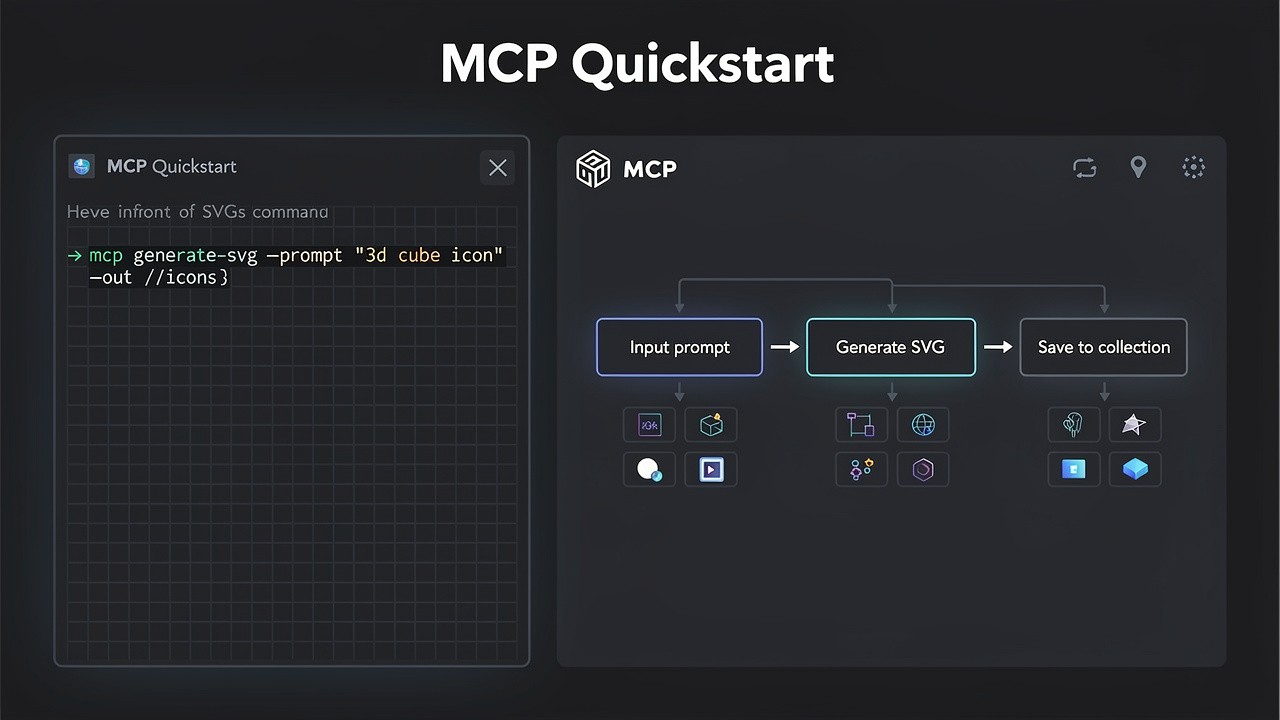
For developers and technical creators, the ability to integrate AI SVG generation directly into applications, scripts, and automated workflows is a game-changer. This is where the SVGverseAI MCP Server comes in. This quickstart guide will show you how to use this powerful MCP SVG tool to build, automate, and generate SVGs programmatically, complete with real-world examples to get you started immediately.
What is the SVGverseAI MCP Server?
The SVGverseAI MCP (Model Context Protocol) Server is a bridge that allows other applications—like AI assistants (Claude, Cursor), development tools, or custom scripts—to communicate directly with SVGverseAI's generation engine. Instead of manually using the web interface, you can write code or use natural language commands to generate vector graphics. This unlocks automation, batch processing, and integration into creative and development pipelines, making it the ultimate MCP SVG solution for technical workflows.
Why Use an MCP SVG Tool?
Integrating via an MCP SVG server like this transforms your workflow:
Automate Repetitive Tasks: Generate hundreds of style-consistent icons from a spreadsheet list.
Integrate into Development: Create dynamic graphics for user-generated content, dashboards, or applications on the fly.
Enhance AI Assistants: Allow Claude or other MCP-enabled assistants to create and discuss custom SVG graphics within your conversation.
Batch Processing: Convert folders of logos or sketches to vectors without manual uploads.
For a deeper technical dive, see our full guide on building and automating with the SVGverseAI MCP Server.
Quickstart Setup: Connect in Minutes
Step 1: Get Your API Key
Log into your SVGverseAI account.
Navigate to your account settings or API section.
Generate a new API key. This key authenticates your MCP SVG requests.
Step 2: Configure Your MCP Client
The setup varies slightly by client. Here’s the core configuration needed for most MCP clients (like Claude Desktop):
Add the Server: Point your MCP client to the SVGverseAI MCP server. You typically need the server URL and your API key.
Example
claude_desktop_config.jsonsnippet:json
{
"mcpServers": {
"svgverseai": {
"command": "npx",
"args": [
"-y",
"@svgverseai/mcp-server"
],
"env": {
"SVGVERSEAI_API_KEY": "your_api_key_here"
}
}
}
}Restart your client to load the new MCP SVG tools.
Core MCP SVG Tools & How to Use Them
Once connected, you'll typically have access to these main tools. You can call them via your AI assistant or directly in code.
1. generate_svg – Create from a Text Prompt
This is the primary tool for generating an SVG from a text description, perfect for creating icons, illustrations, or logos on demand.
Example AI Assistant Command:
"Use the generate_svg tool to create a simple, flat design icon of a rocket taking off. Use a blue and orange color scheme."
Example Direct Function Call (JavaScript-like pseudocode):
javascript
const result = await mcpTools.generate_svg({
prompt: "A minimalist outline icon of a calendar with a checkmark on the 15th, line art",
style: "line_art", // Optional: specify a style from SVGverseAI
aspect_ratio: "1:1" // Optional: control the canvas
});
// result.url contains the URL to download the generated SVG
2. convert_to_svg – Transform Images to Vectors
Automate the conversion of existing raster images (PNG, JPG) into clean SVG vectors. Ideal for processing user uploads or legacy assets.
Example Use Case Script (Conceptual):
python
# Pseudocode: Process a folder of logos
for logo_file in folder:
result = mcp_tools.convert_to_svg(
image_url=logo_file.upload_url,
enhancement="high_quality"
)
save_svg(result.svg_data, logo_file.name + ".svg")
Real-World MCP SVG Examples
Example 1: Automated Icon Set Generation
Scenario: You need a set of 50 interface icons for a new finance app.
Manual Workflow: Write 50 prompts, click generate 50 times, download 50 files.
MCP SVG Automated Workflow:
javascript
// Example using a Node.js script with the MCP server
const iconKeywords = ['wallet', 'chart', 'shield', 'transaction', 'savings', ...];
const basePrompt = "Finance app icon for [KEYWORD], neomorphic style, soft blue gradient, rounded squares background";
iconKeywords.forEach(async (keyword) => {
const prompt = basePrompt.replace('[KEYWORD]', keyword);
const svg = await mcpServer.generate_svg({ prompt });
// Auto-save, add to project, and update the UI library
console.log(`Generated ${keyword}.svg`);
});
Example 2: Dynamic Chart Visualization
Scenario: Generate a custom data visualization SVG for a weekly report.
Workflow: Connect your data pipeline to the MCP SVG server.
javascript
// Generate a bar chart based on weekly sales data
const chartPrompt = `
Create a simple bar chart SVG. Bars representing values: ${salesData.join(', ')}.
Use a professional teal color for bars, with clean axes and labels.
Horizontal layout.
`;
const chartSVG = await generate_svg({ prompt: chartPrompt });
// Embed the SVG directly into the HTML report
Example 3: AI-Assisted Design within Claude
Scenario: You're discussing a website design with Claude and need a custom graphic.
Conversation Flow:
You: "Claude, I need a hero section illustration for a cybersecurity service website."
Claude: "I can generate that. Using the SVGverseAI MCP tool... What specific elements would you like? Perhaps a shield, digital lock, and network graph?"
You: "Yes, with a dark theme and glowing accents."
Claude: (Calls generate_svg with prompt: "A cybersecurity hero illustration featuring a central shield intertwined with a digital lock and abstract network graph connections. Dark theme with deep blue and glowing cyan accents. Digital art style.")
Claude: "Here's the generated SVG for your hero section. We can adjust colors or elements if needed."
Best Practices for MCP SVG Development
Prompt Precisely: Just like the web interface, detailed prompts yield better results. The principles in Your First Guide to SVGverseAI still apply.
Handle Errors Gracefully: Always implement error handling in your scripts for API limits, failed generations, or network issues.
Respect Rate Limits: Be mindful of the API's rate limits when running batch jobs. Implement delays if necessary.
Cache Results: If generating static assets, cache the SVG outputs to avoid regenerating the same graphic repeatedly and conserve your AI SVG credits.
Combine with Other Tools: The true power of an MCP SVG server is integration. Chain its output with other tools to optimize SVGs, extract colors, or convert to React components.
Start Building and Automating Today
The SVGverseAI MCP Server turns SVG generation from a manual task into a programmable function. Whether you're building a design tool, automating asset creation for clients, or simply enhancing your AI assistant's capabilities, this MCP SVG integration provides the flexibility and power you need.
Ready to automate your SVG workflow?Get your API key and start building. Explore the full potential of programmatic generation with our developer-friendly pricing. Check the documentation for the latest MCP SVG server setup details and start integrating AI-powered vector graphics directly into your applications and workflows today.