Design
SVG vs PNG vs WebP: Which Image Format Should You Use? (Real Examples)
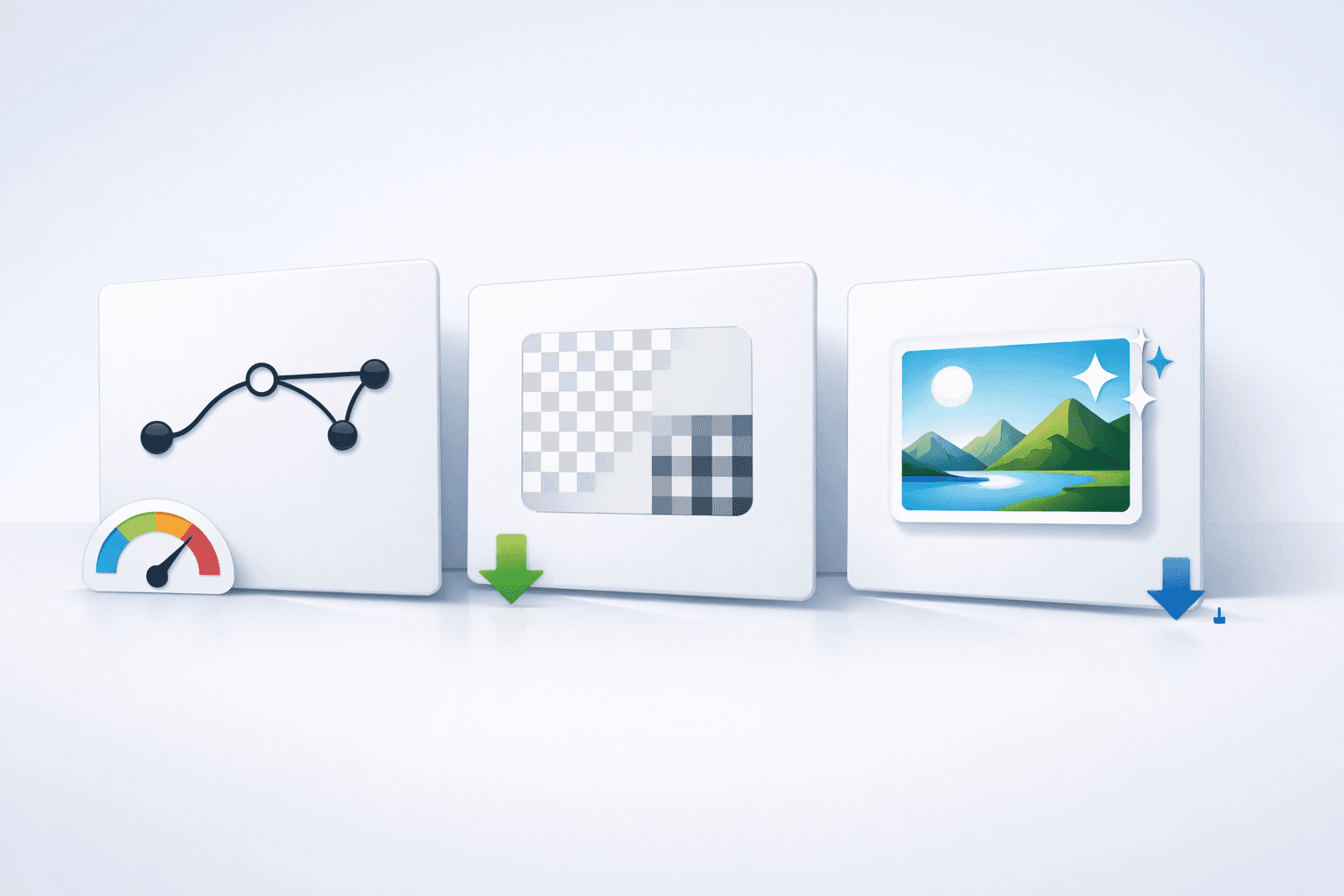
SVG vs PNG vs WebP: What to Use (With Real Examples)
Picking the wrong image format is one of those “silent killers” of performance. Your page still loads… but Core Web Vitals suffer, images look blurry on retina screens, and your “simple” hero graphic becomes a 1.8MB download.
So let’s make it simple:
SVG = best for logos, icons, UI, simple illustrations
PNG = best for pixel-perfect transparency, screenshots, assets that must stay lossless
WebP = best for photos + performance, and many cases where PNG/JPG are too heavy
This guide gives you practical rules, real examples, and a quick decision table you can use in 10 seconds.
When SVG wins
SVG is a vector format—so it scales cleanly at any size without getting blurry. That alone makes it unbeatable for many UI and brand assets.
SVG is best for:
1) Logos & brand marks
A logo in PNG can look fine at one size, then blur on a bigger screen. SVG stays crisp everywhere.
2) Icons & UI controls
SVG icons are usually smaller than PNG versions, and you can change color via CSS.
3) Simple illustrations & flat graphics
If your graphic is mostly shapes (not photo-detail), SVG keeps file sizes small and rendering sharp.
Real example:
A 24px icon saved as PNG might be 6–20KB.
The same icon as a clean SVG might be 0.5–3KB (and can be recolored instantly).
SVG bonus wins
CSS theming (set
fill="currentColor"and control color from CSS)Animation (simple strokes, transforms, hover animations)
Responsive (one asset works for multiple sizes)
When PNG/WebP wins
SVG is not a magic answer. If you push photo-detail into SVG, the file can become massive and heavy to render.
PNG wins when:
1) You need true lossless quality + transparency
Example: UI mockups, crisp UI screenshots, pixel art, or assets where any compression artifacts look bad.
2) Your image must stay exactly pixel-perfect
Example: screenshots of dashboards, code snippets, product UI captures.
WebP wins when:
1) Photos, realistic images, gradients, textures
WebP typically compresses far better than PNG/JPG and supports transparency + animation. MDN Web Docs+1
2) You want performance without visible quality loss
For ecommerce/product photos, WebP is usually the best default.
Performance (what actually loads faster)
A format “wins” when it reduces:
total bytes downloaded
time to render
layout shift risk (CLS)
CPU cost (especially on mobile)
Practical performance rules
Icons/logos/UI → SVG (crisp + tiny)
Photos → WebP
Screenshots / sharp UI captures → PNG (or WebP if it still looks sharp)
WebP is widely recommended because it typically delivers much better compression while supporting transparency and animation. MDN Web Docs+1
SEO: does format matter?
Format affects SEO indirectly via:
Page speed (Core Web Vitals)
Accessibility (alt text)
Indexing + context
SVG SEO notes
SVG can be inline and searchable (text inside SVG can be readable by crawlers), but you should not rely on SVG text for SEO-critical content. Use real HTML for headings and key text.
PNG/WebP SEO notes
Use descriptive filenames and alt text.
For photos, WebP helps performance → helps SEO outcomes indirectly.
Transparency (background removal)
SVG: supports transparency naturally.
PNG: supports transparency very well (classic “transparent background” format).
WebP: supports transparency and often compresses better than PNG. MDN Web Docs
Rule:
If it’s a logo/icon → SVG.
If it’s a cut-out photo/product image with transparency → WebP (test quality) or PNG (if WebP artifacts appear).
Animation
SVG: great for lightweight UI animations (strokes, paths, transforms, hover effects).
WebP: supports animated images (like GIF, but better compression). MDN Web Docs
PNG: supports APNG in some contexts, but it’s not the common choice for web animation.
If the “animation” is a real video-like sequence, use video formats—don’t force image formats to do video work. (Even MDN frames animation as broader performance topic—SVG is one option among others.) MDN Web Docs
Quick decision table
Use case | Best format | Why |
|---|---|---|
Logo | SVG | Crisp at any size, small, themeable |
Icons (UI) | SVG | Can change color via CSS, tiny payload |
UI illustration (flat) | SVG | Scales clean, often smaller |
Photos (hero, product, lifestyle) | WebP | Great compression + quality MDN Web Docs |
Screenshot / UI capture | PNG | Lossless + sharp edges |
Transparent product cut-out | WebP (or PNG) | WebP smaller; PNG safest for lossless MDN Web Docs |
Animated sticker/loop | WebP or SVG | WebP for frame animation; SVG for UI motion MDN Web Docs+1 |
Best-practice checklist (copy/paste)
✅ Use SVG for icons, logos, UI shapes
✅ Use WebP for photos and most raster images
✅ Use PNG only when you truly need lossless or ultra-sharp edges
✅ Always add alt text
✅ Compress/optimize everything (SVG can also bloat if exported poorly)
Want more performance-focused reading?